Using Flows in SharePoint for Seamless Page Management


For all the people out there using SharePoint to run your site, you may have noticed a key feature that is missing and may be causing you or members of your organization a lot of inconvenience – in the Pages Library section, there is no “Move To” button!
And no, “Copy To” is not an alternative option, because that button can lead to unwanted content duplication.
The question is, what is the solution here? How can you create a good experience for people when it is so difficult to perform this simple action? The answer lies in building Flows, which are automatic workflows, in order to create a seamless user experience for the people who will be using your SharePoint site.
The plan
The process will involve creating three flows and an additional SharePoint list called "PageFolders" with three fields: Title, FolderPath, and FolderID. The flows mentioned are: "Folder Management: Create/Modify," "Folder Management: Deletion," and "Site Pages: Move to Chosen Folder."
The following blog post will provide step-by-step instructions for setting up the flows and the PageFolders list. It covers the following:
- Obtaining Site Pages library GUID
- Checking folder creation or modification conditions
- Managing PageFolders list based on folder IDs
- Removing items from the list when folders are deleted
- Enabling folder selection in PageFolders list for editing page details
1. Obtaining Site Pages library GUID
First, start with the folder management Flows to populate and manage your PageFolders list items according to folders created in the Site Pages library.

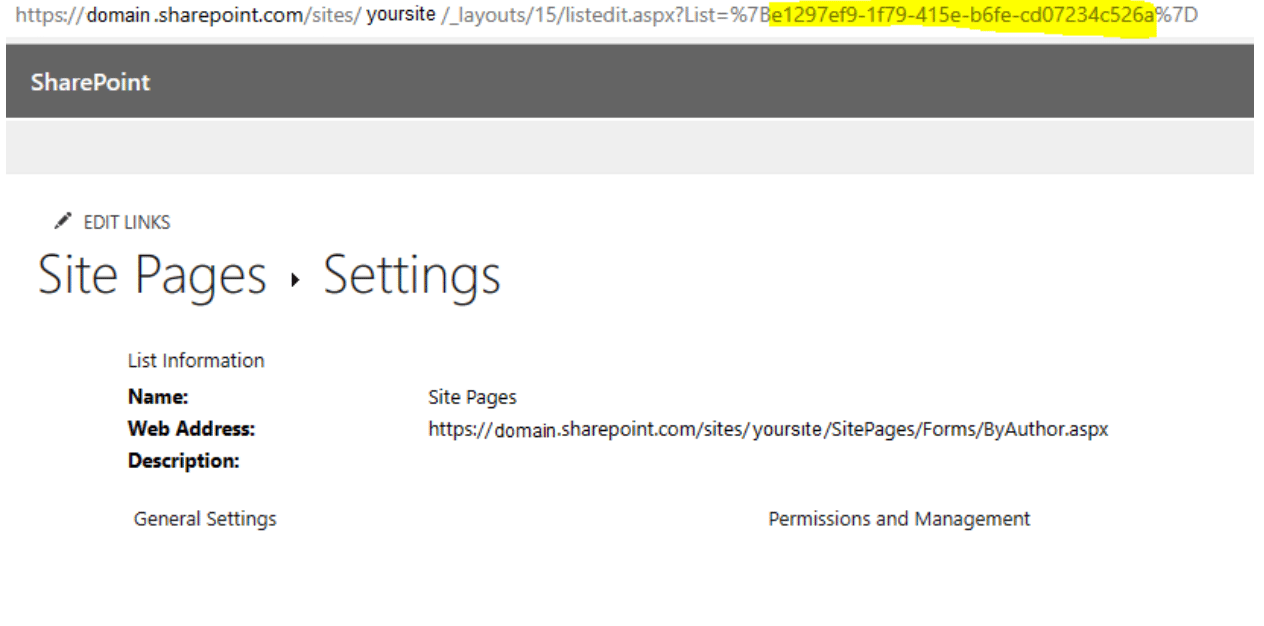
You’ll need to get your Site Pages library GUID from the library itself and add it in manually for this to work, and to do so, visit your Site Pages library and get to the library settings page which has the GUID in the URL:
2. Checking folder creation or modification conditions
Next, we’ll add a condition to check if the item created/modified is a folder. You could also add this to your trigger properties as a filter.

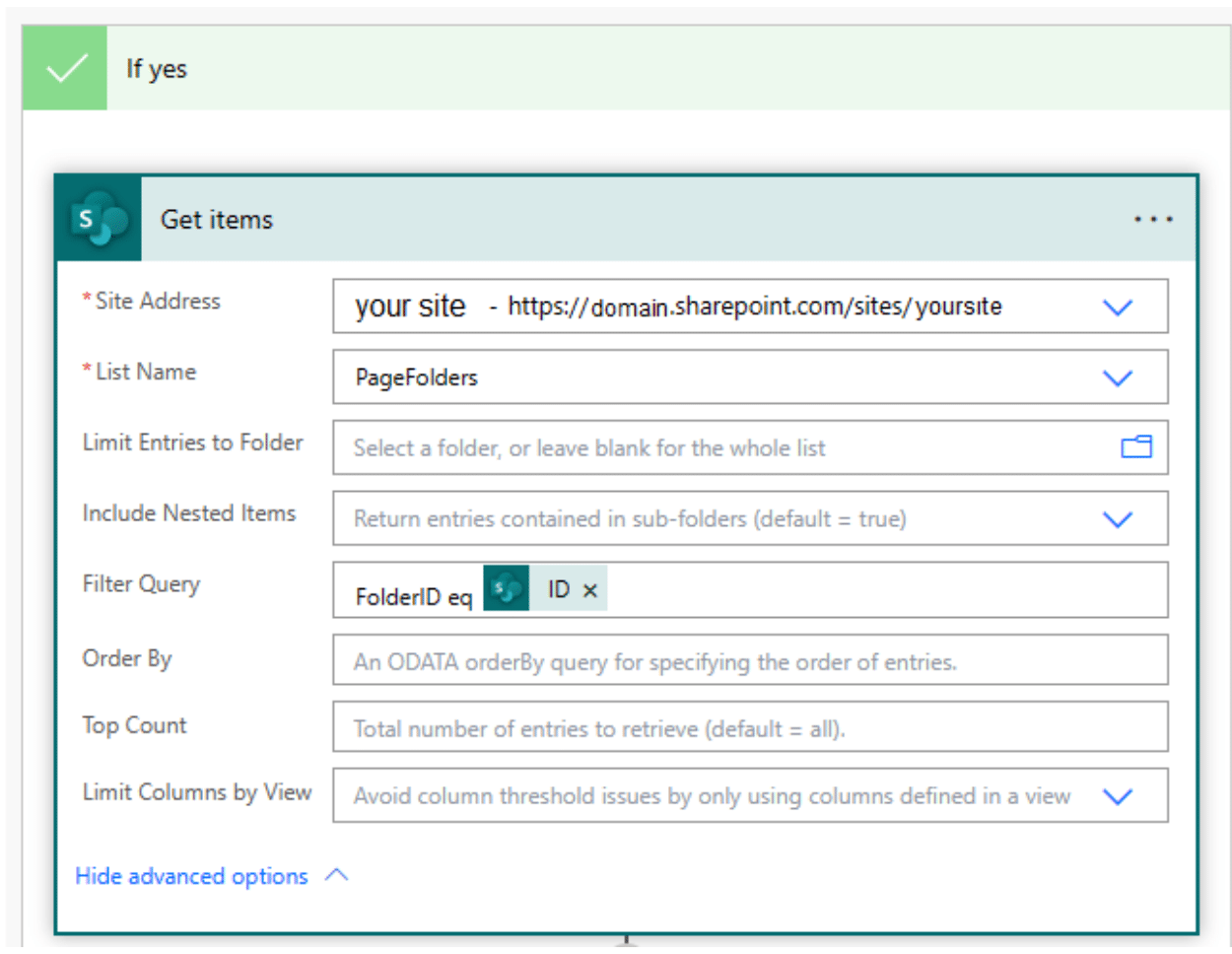
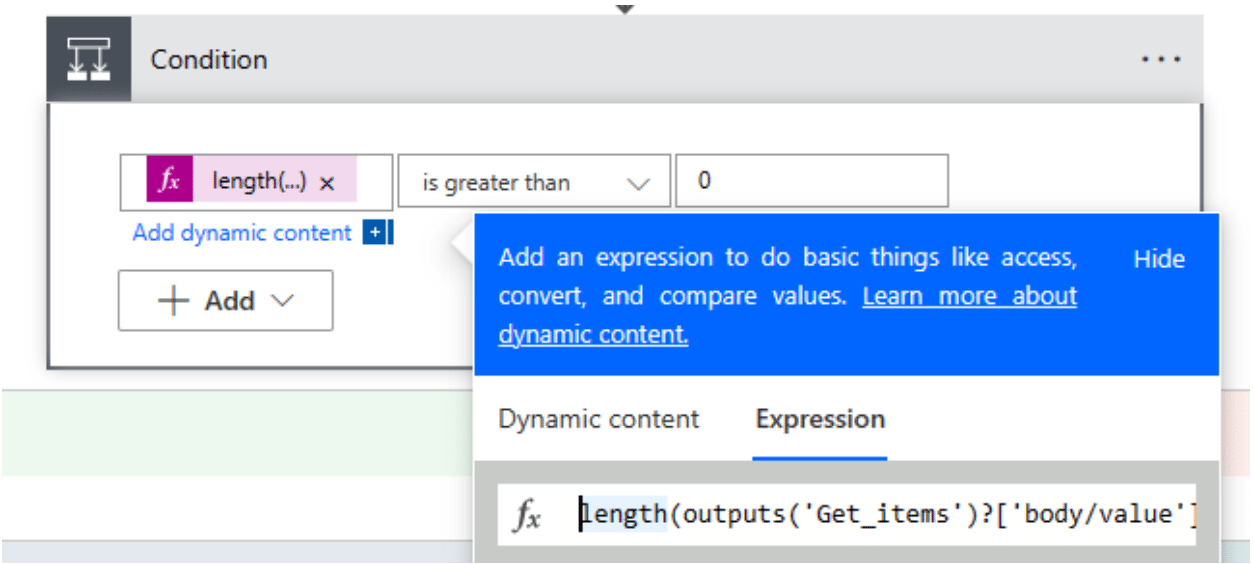
If it is a folder being created or edited, we’ll move on with the Flow. First, we will check if a folder with the same ID is already represented in the “PageFolders” list.
3. Managing PageFolders list based on folder IDs
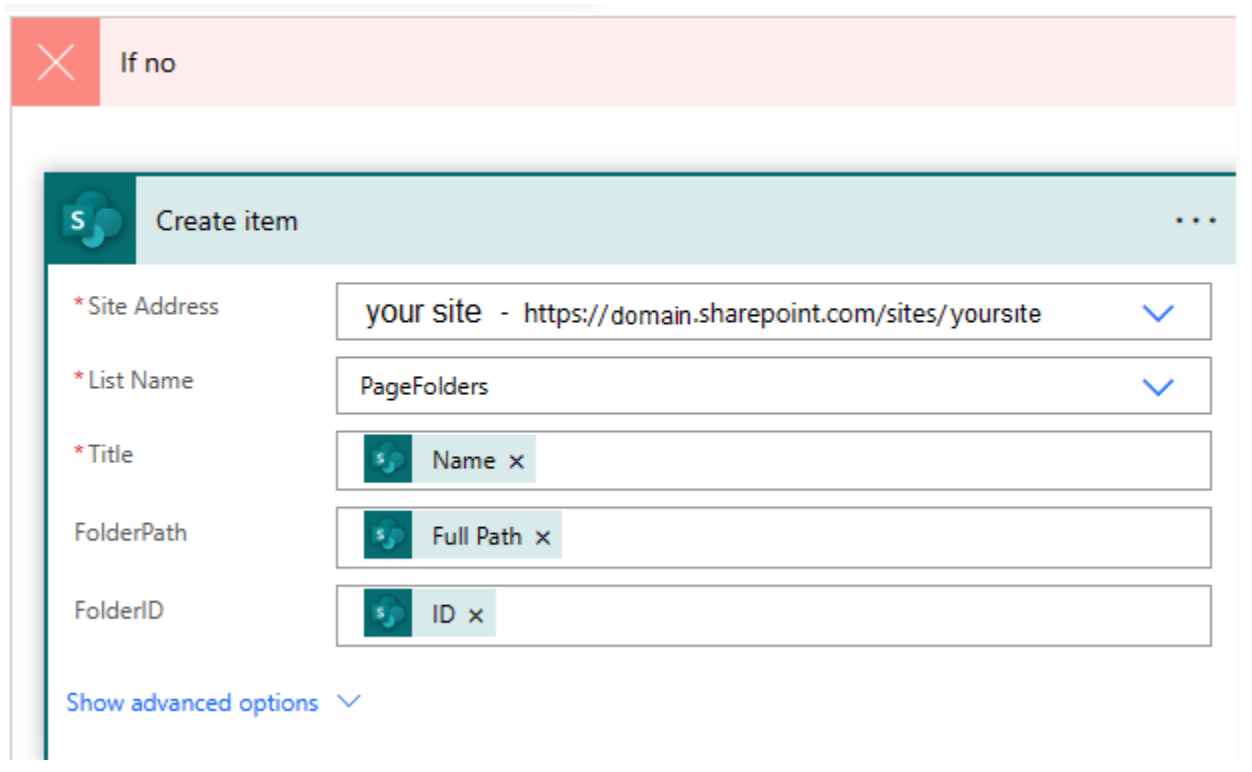
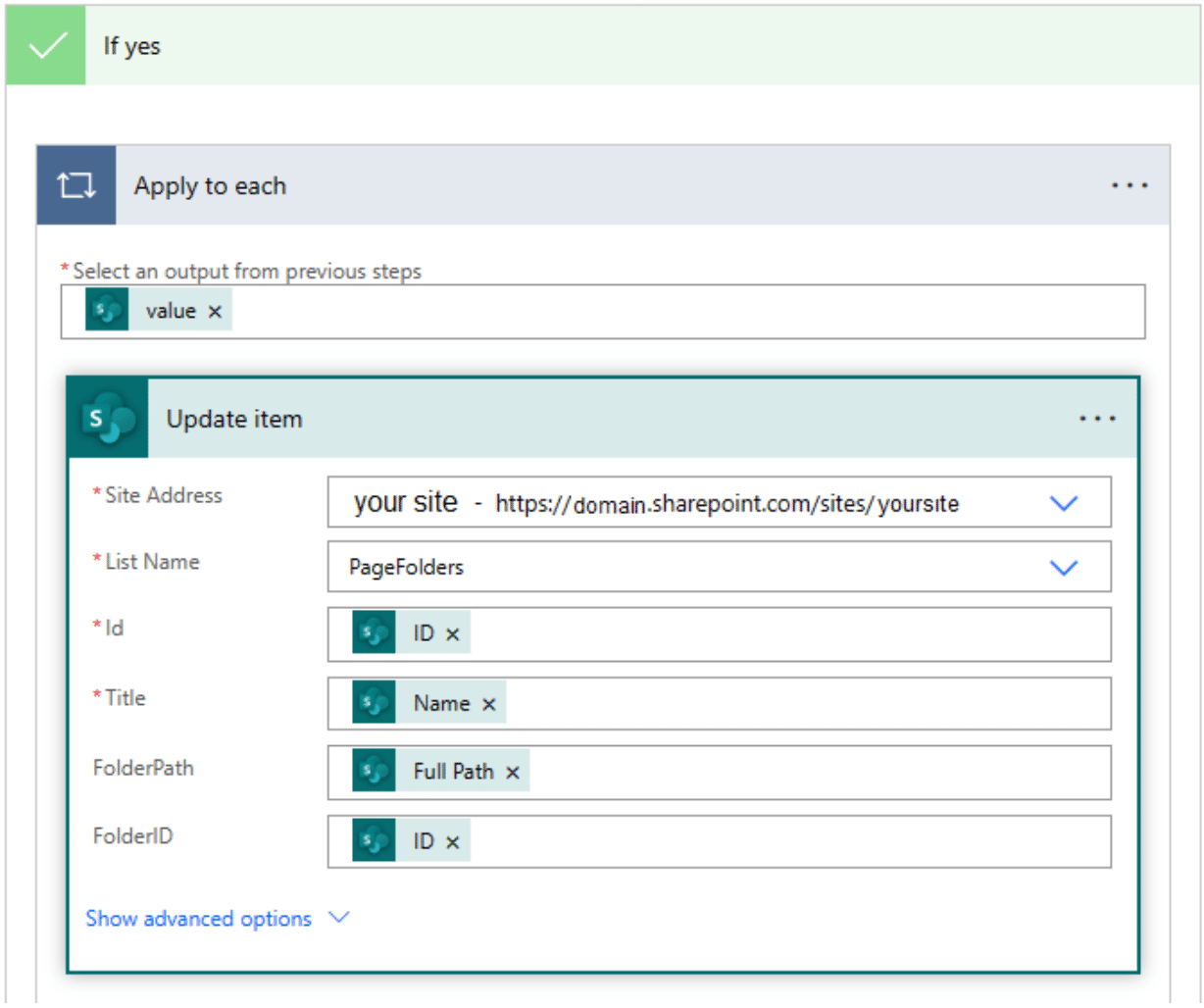
We will then check if anything was returned. If there has been anything returned, there will be a folder represented with the same ID. If not, we’ll create the new item in the PageFolders list.
If no matching folder item, create one:
If yes, update the item:
That’s it for this workflow, the last one we need for Folder management is to clean items out of the list when folders are deleted.
4. Removing items from the list when folders are deleted
You’ll need to follow the same process to add the Site Pages library GUID to the trigger for this one as above.
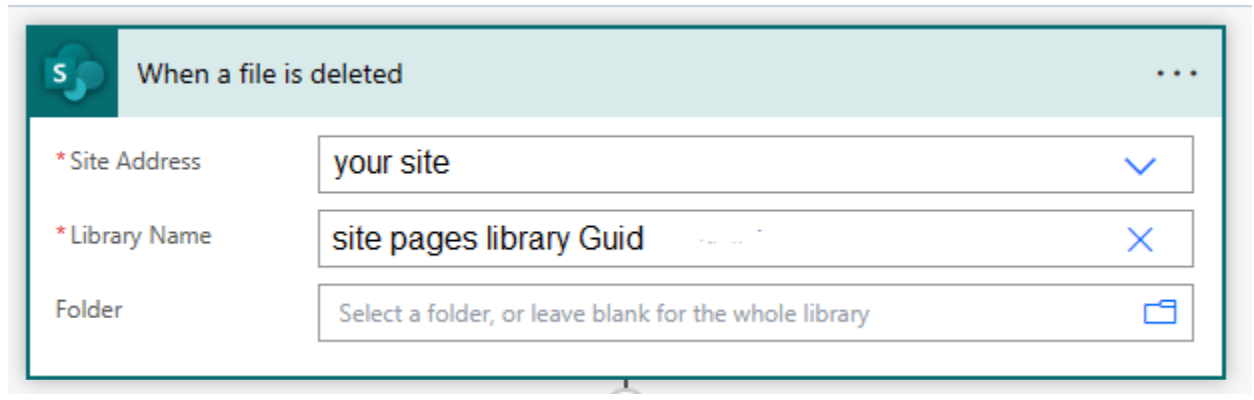
Then, we’ll check if it’s a folder again (this could be something you set up in your trigger filters if you have high traffic and want to keep things ultra efficient).
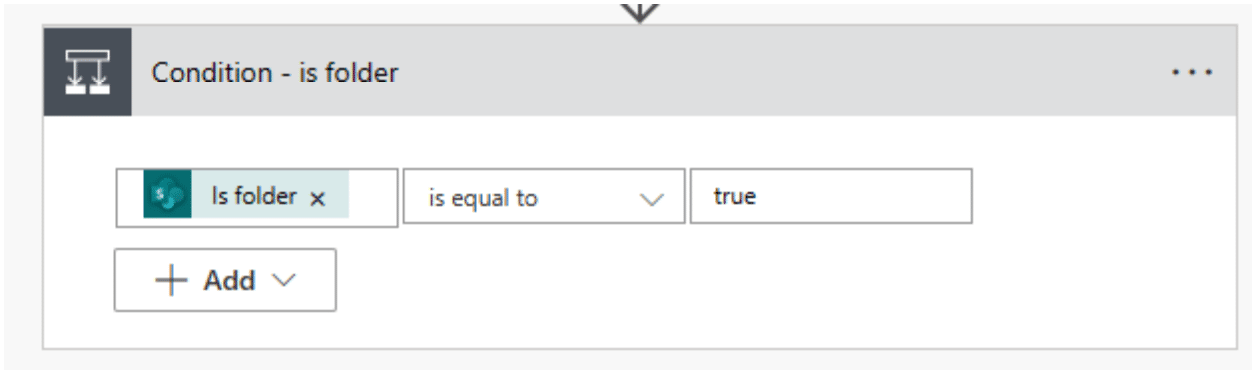
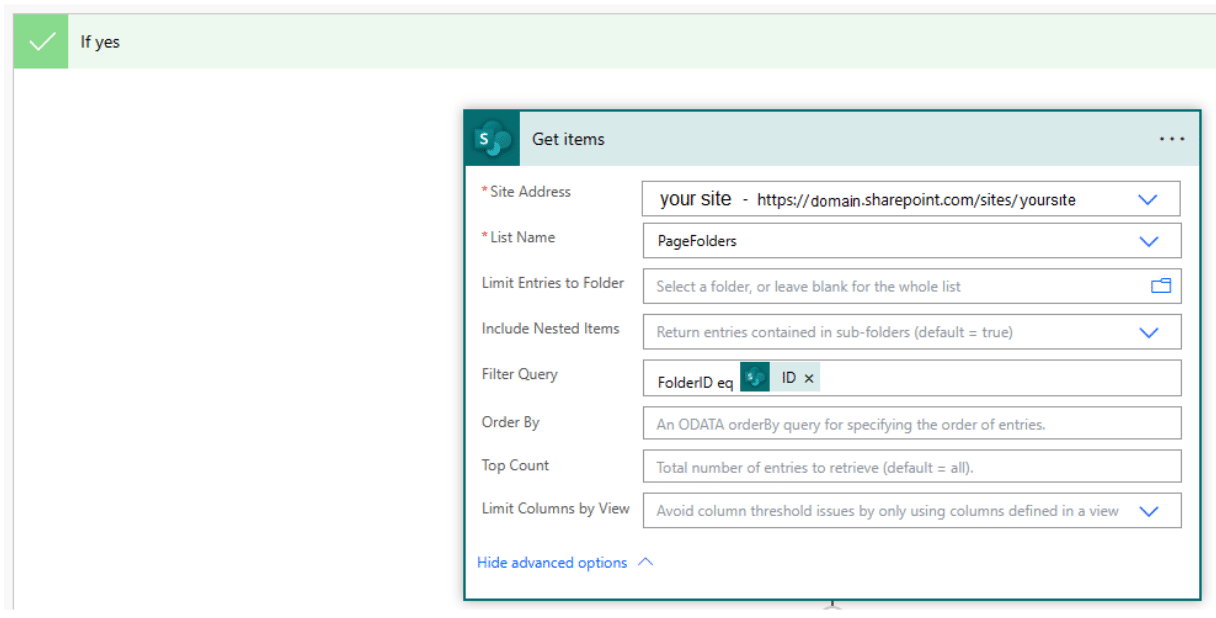
Then get any items with the matching IDs from the PageFolders list.
And delete them if they exist:

Now that we have the PageFolders list being populated and updated according to what folders are in the Site Pages library, we can build the Flow that will actually move pages around according to what users choose in the Page settings.
5. Enabling folder selection in PageFolders list for editing page details
First, we have to make sure that the PageFolders list shows a field for users to pick their folder from the page itself. To do this, we’ll go to the Site Pages library settings and add a new lookup column that pulls the Title from the PageFolders list.
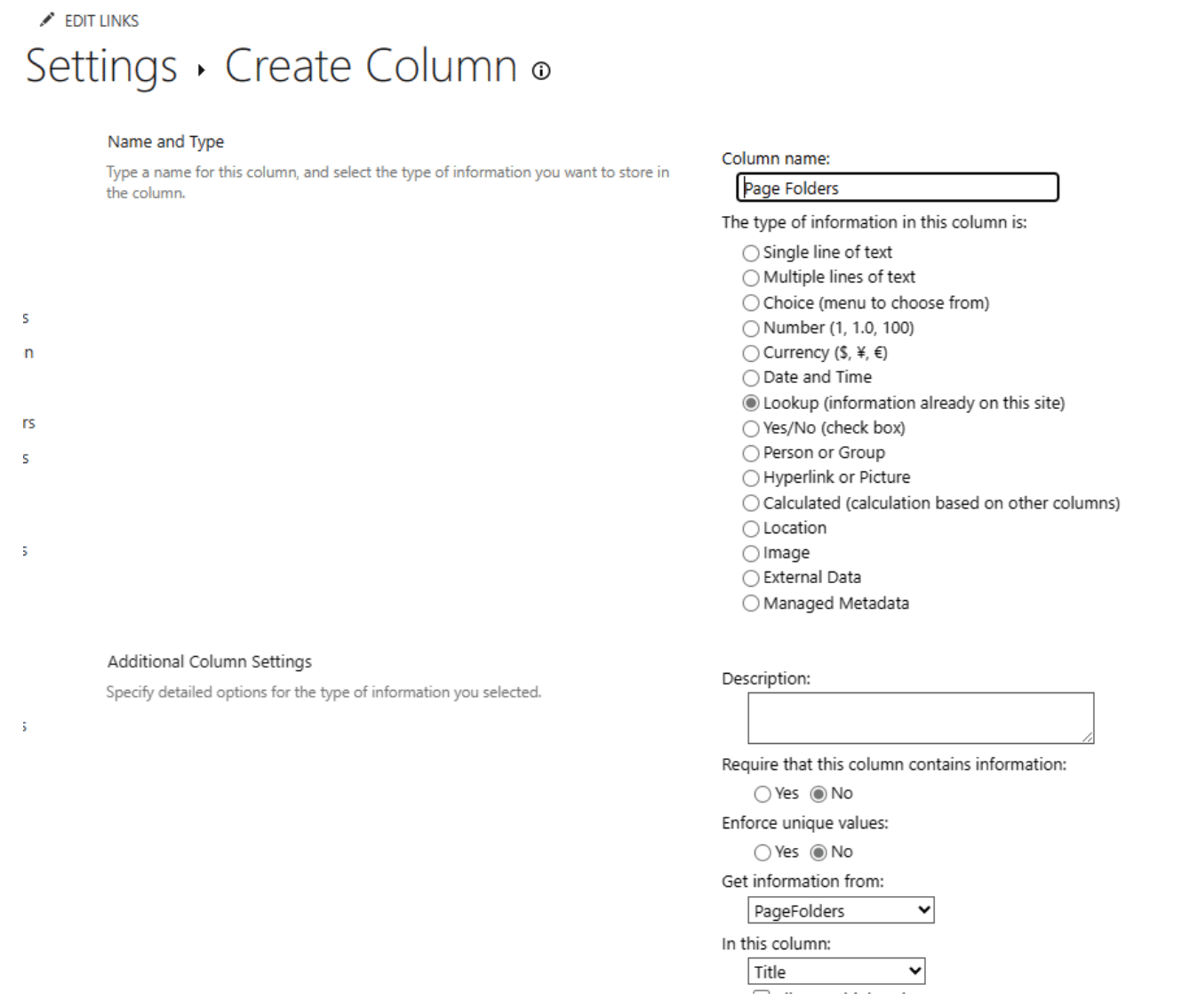
Be sure to add this to all content types (set by default) and click ok.
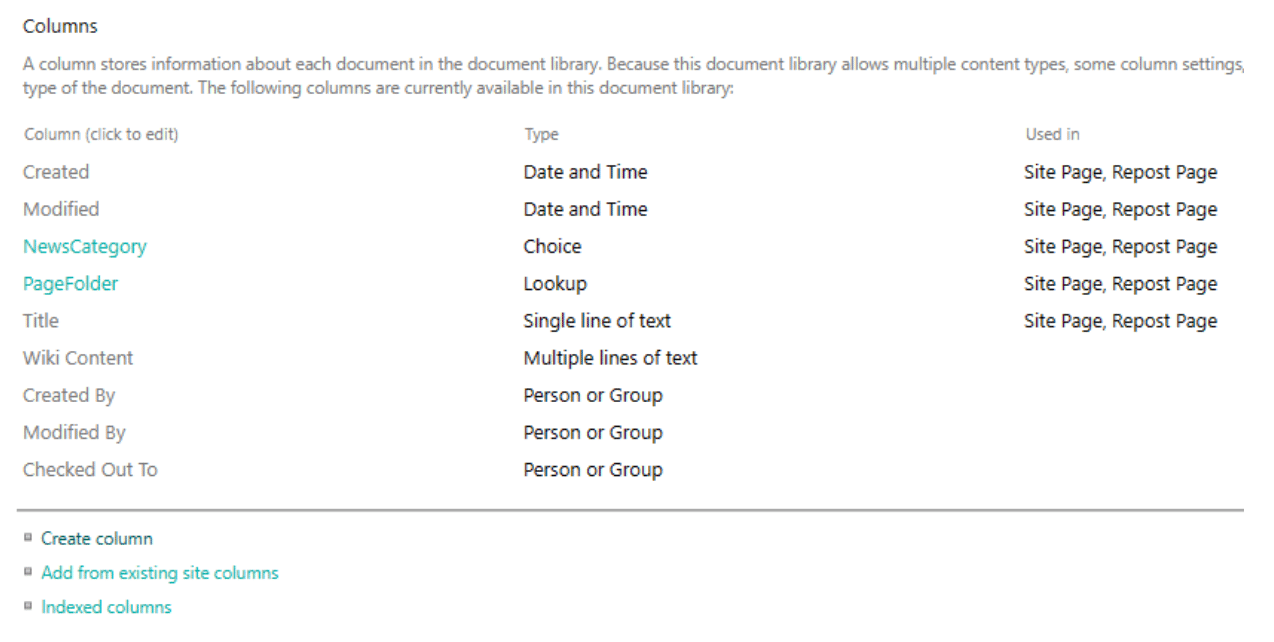
Now, when a user edits Page details, they will see PageFolder as a field they can update with a dropdown of the PageFolders to choose from.

Next, we’ll set up the Flow that will move the pages according to the PageFolder field choice once pages have been published!
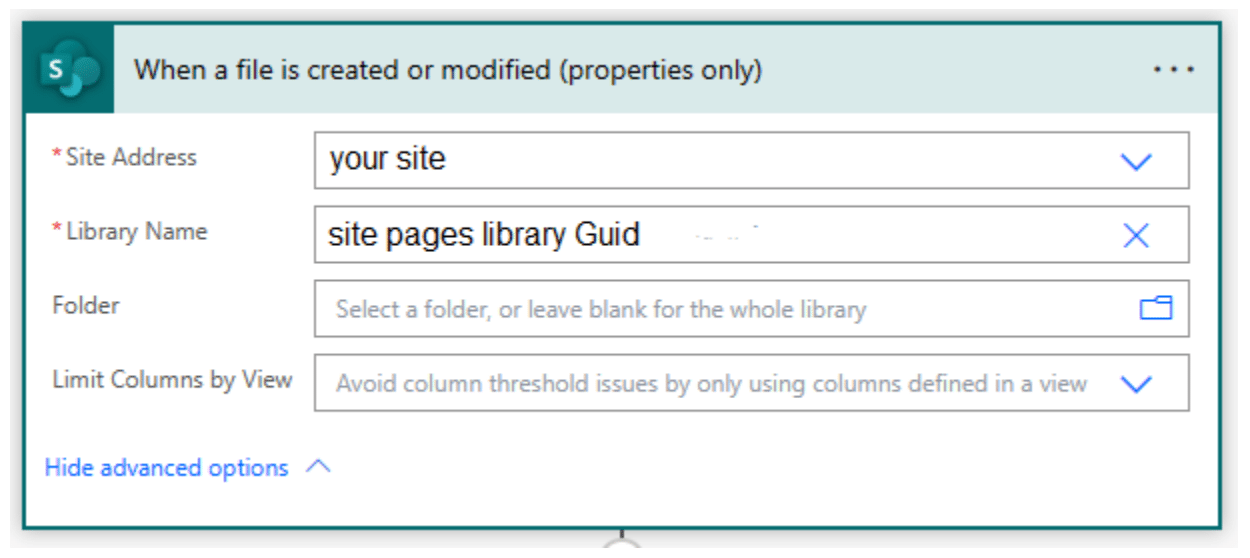
The trigger will be when a file is created or modified in the Site Pages library again as before we’ll need that GUID to make this connection.
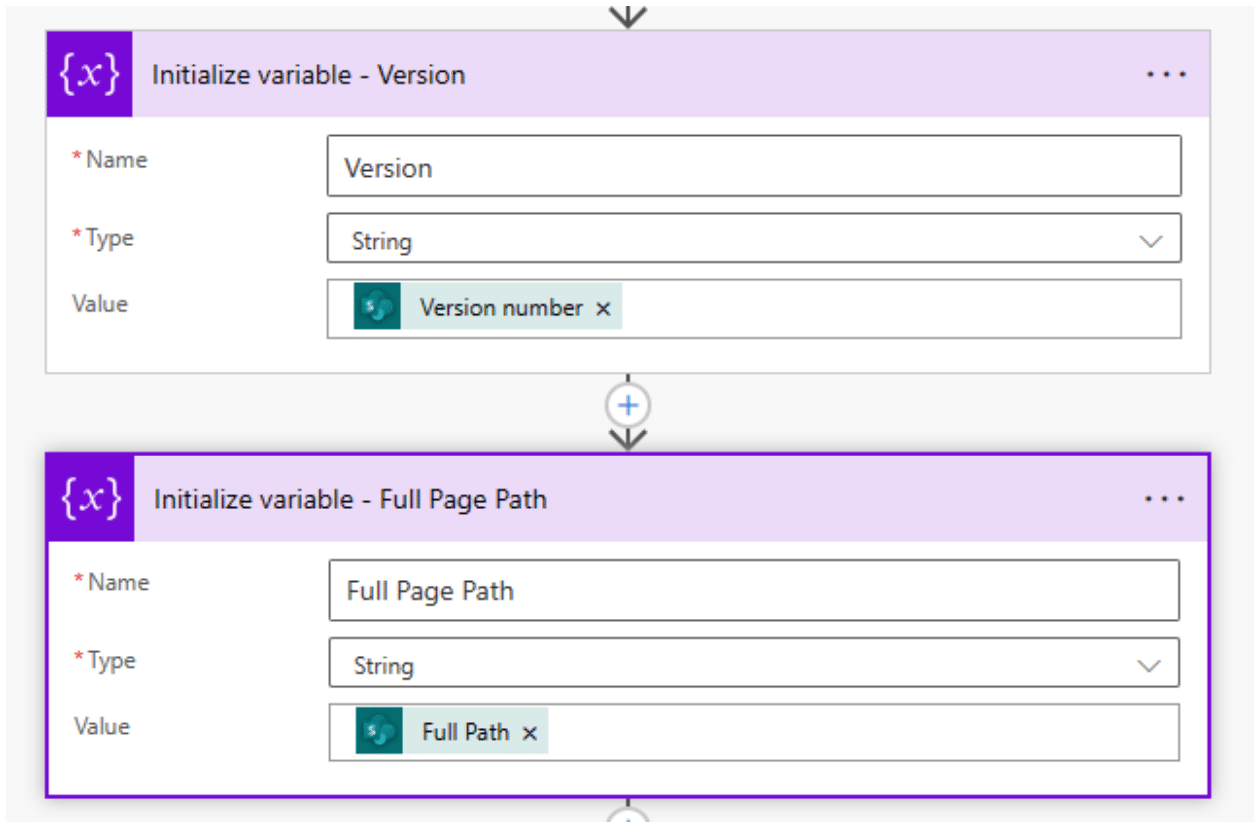
Then, we’ll create two variables that grab the current version and full path of the page.
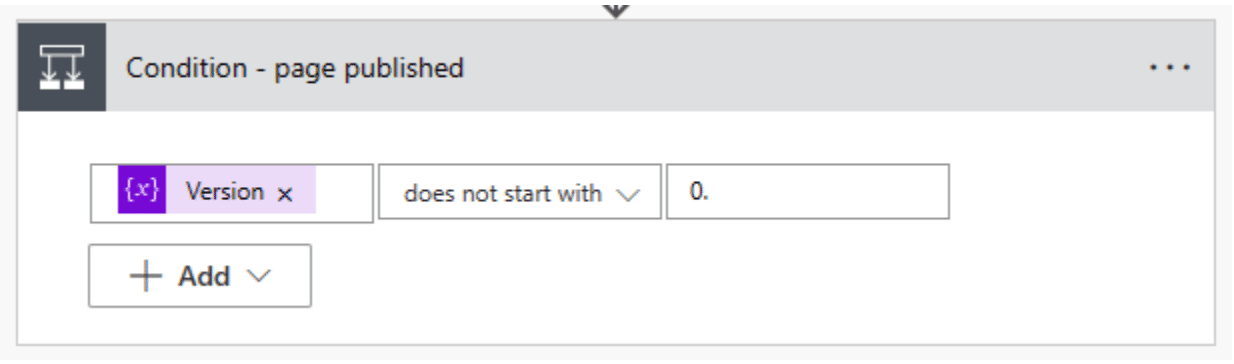
Before we move on with the Flow, we need to check if the page has been published yet, and if not, the flow will end.
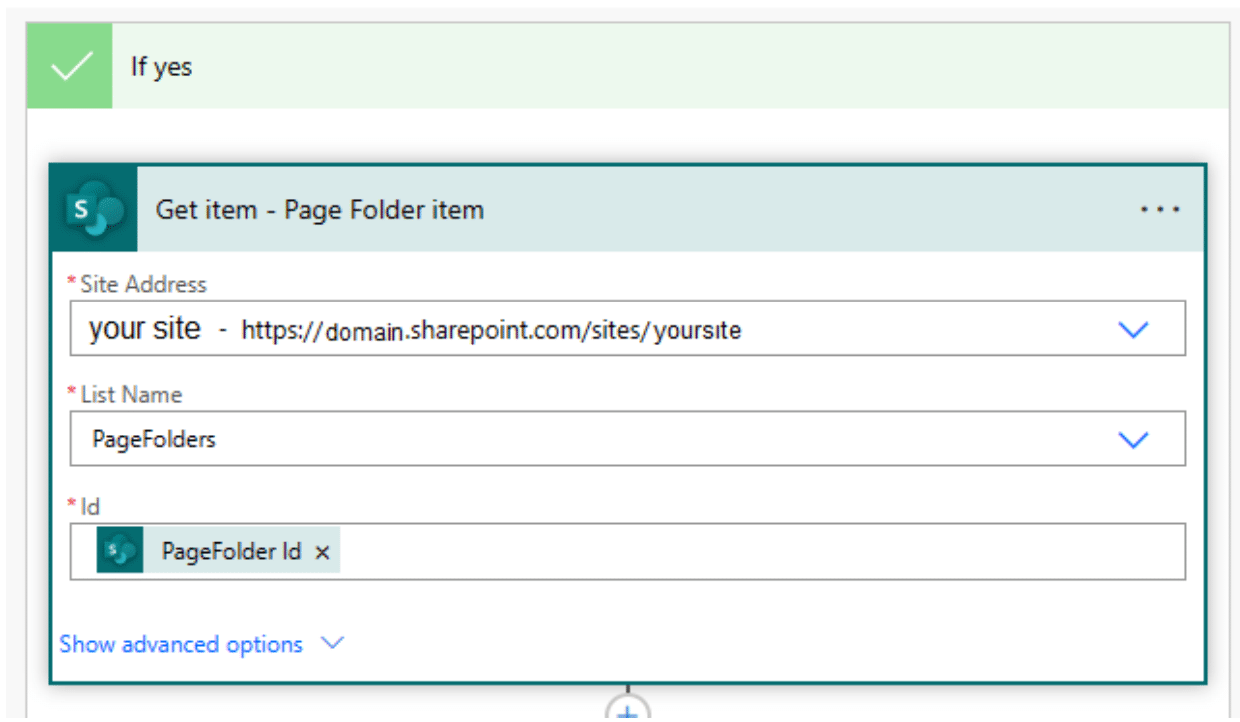
If the page has been published though, we’ll keep moving along with the flow by getting the information about where the page should be moved.
Then check if the page is in the right folder or not yet.
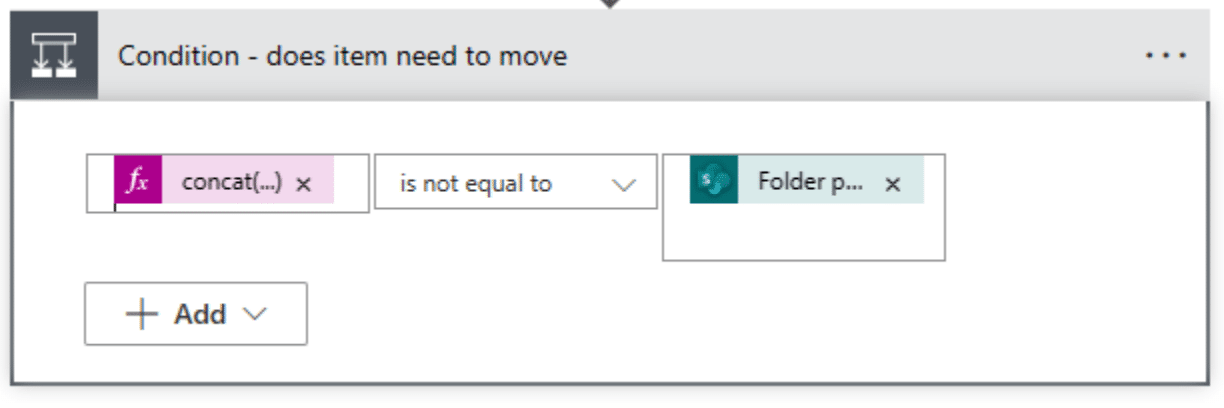
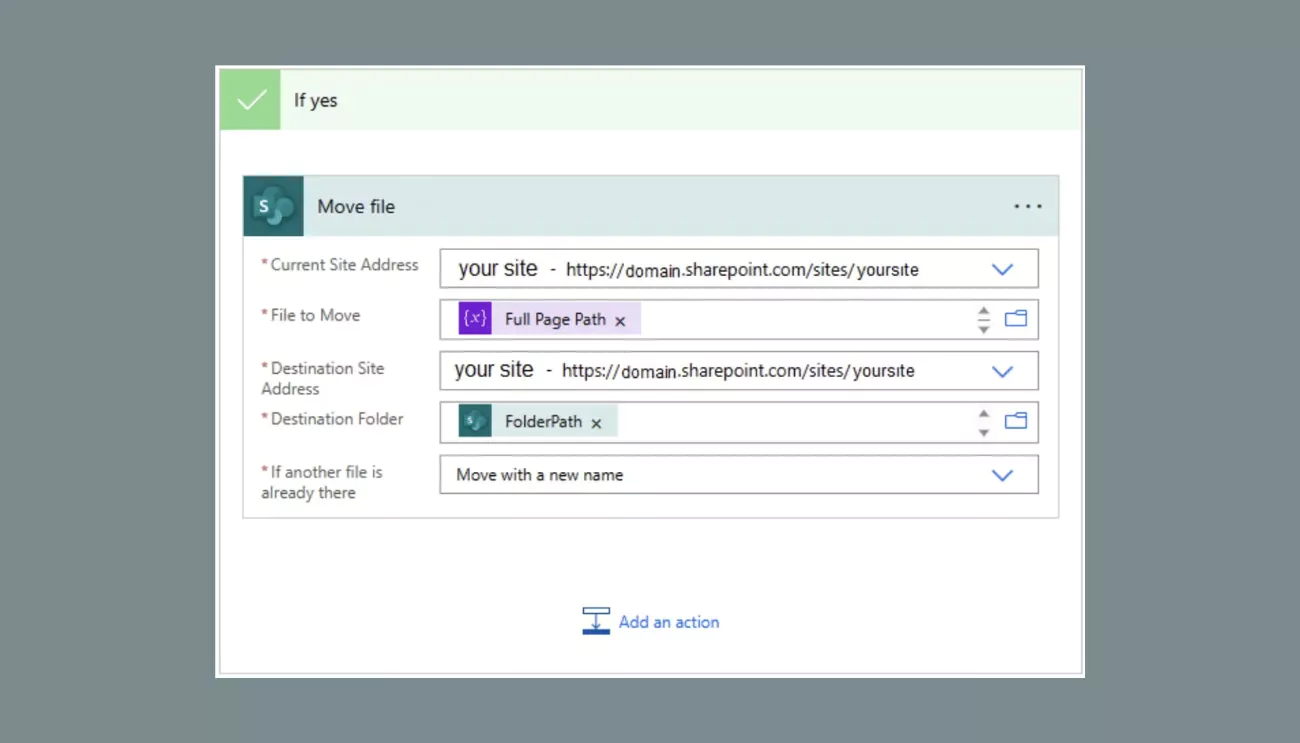
If it needs to move, move the file:
.png)
And that’s it! Now your users can just pick the folder from the dropdown and their pages can be organized into folders to allow for folder-based security and just general organization. Thanks everyone for tuning in.
Latest Blogs

High Monkey at M365 Twin Cities 2026


High Monkey launches a rebrand
.webp)
Inside the new OSA site
Your success story starts here
Contact us for a free consultation, and let’s work together to build a strategic plan that tackles your challenges and lifts your organization to a new level.