
Elevate your productivity with this OneNote Kanban Board strategy


Life on Earth moves fast these days! The advancement of technologies has only accelerated change. There always seems to be a new "life hack" to speed up your routine or remove as many steps from it as possible. We read into this clickbait only to realize that's all it was, a catchy title. Many things are timeless. That's why the phrase "reinvent the wheel" is always said with a dash of irony. Wheels have been the same for centuries, humans have simply made tweaks and upgrades to it in order to serve specific purposes.
This is getting a little too philosophical so let me reign things back in.
It's been over a decade since we wrote a blog on the concept of using Kanban in OneNote. Somehow, that blog became our most popular blog of all time by far. Much has changed since then, but the fundamentals of Kanban in OneNote have stood the test of time. Today, we retire our old blog and redirect its URL to this updated guide, but we're not here to "reinvent the wheel." Instead, we aim to refine and expand upon these proven methods to enhance your workflow further.
This guide will help you understand how to adapt the Kanban board to meet your needs. Whether you're familiar with our original OneNote Kanban method or are just getting started, let's get right into how you can make your task management more efficient with our latest updates.
Want a downloadable copy of our original OneNote Kanban template? Reach out to us at our contact form and we'll send you one.
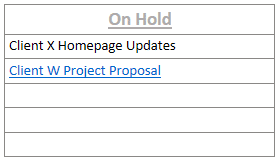
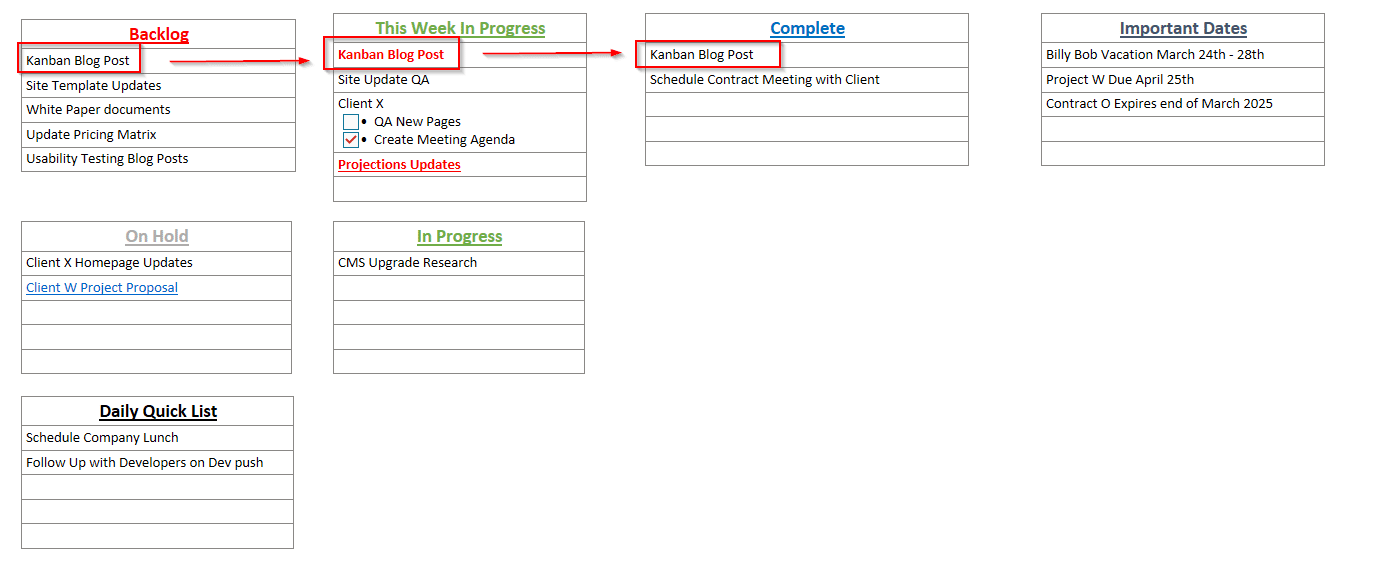
1. on hold
Story of my life as an IT Project Manager. Each project is exposed to a unique variety of factors that can hold things up. The On Hold section of my Kanban Board is to make sure things don't slip through the cracks after they've been paused.
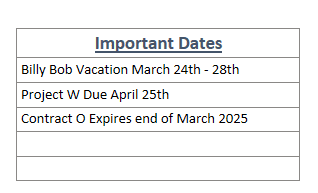
2. important dates
A quick reference to remind myself of my team's time off or when a project is due.
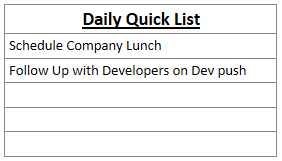
3. daily quick list
My most used list by far. The work day can get busy with messages firing back and forth. Here is where I house tasks that only take a few minutes but can't do in the heat of the moment. Maybe I'm deep into writing a blog post about Kanban in OneNote. I'll note small tasks here to complete when I have free time later in the day.
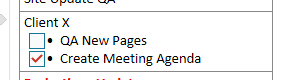
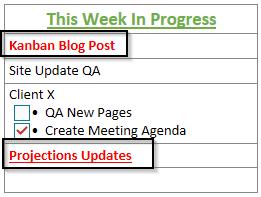
4. checkboxes next to subtasks
Keep track of the subtasks that are complete. You can delete the subtask but I think it's more cathartic to check them off and see them checked off. Once you move the task to the Complete List, feel free to remove all subtasks.
5. red bold text
Use this for tasks that are higher priority. The bold red text will draw your eye to the task and keeps it top of mind.
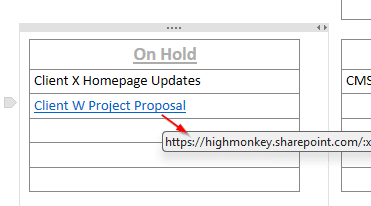
6. linking documents
Add a link to your Shared Drive for a document moving through the OneNote Kanban Board process.
Keep your board simple. My biggest complaint with task tracking software is how complicated it can get. The OneNote Kanban Board should not feel overwhelming, if it does then you're doing too much and must consider consolidating.
Your OneNote Kanban Board can be whatever you want it to be. The main purpose of the OneNote Kanban Board is to create a Process of creating and tracking tasks. Through this simple process you have the flexibility to reprioritize your, or your team's, workload.
We all know life is full of surprises so you want to be sure your Board has the flexibility to handle those changes. Below is an image of the new board.
Latest Blogs

High Monkey at M365 Twin Cities 2026


High Monkey launches a rebrand
.webp)
Inside the new OSA site
Your success story starts here
Contact us for a free consultation, and let’s work together to build a strategic plan that tackles your challenges and lifts your organization to a new level.